V2 Attach
Attach documents and media to IFS Cloud in bulk. V2 Attach imports files into Document Management and the Media Library and connects each one to its business object — a customer, a supplier, a part and so on. One file at a time, or a whole spreadsheet of them in a single validated run.
From load file to attached, in a few screens
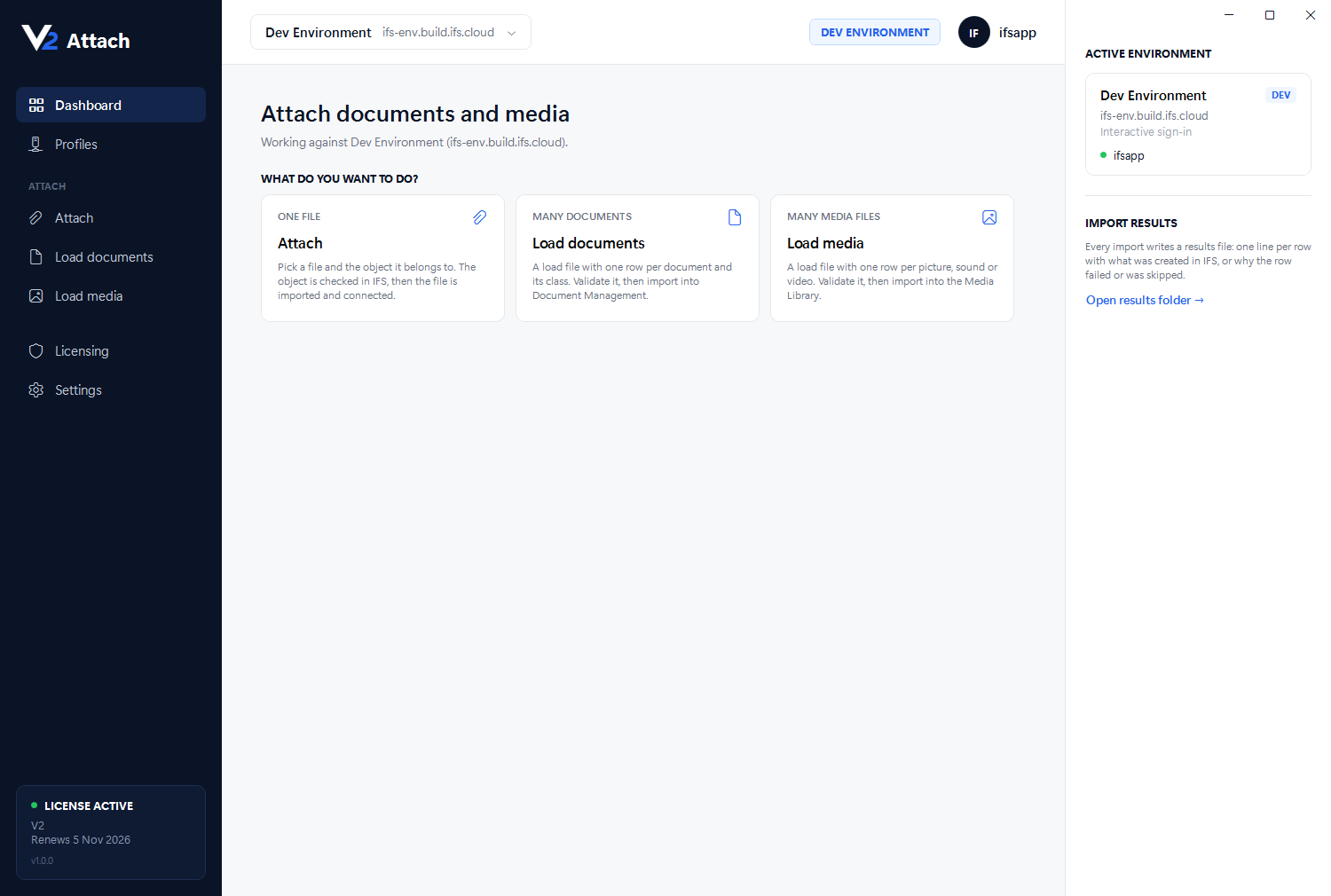
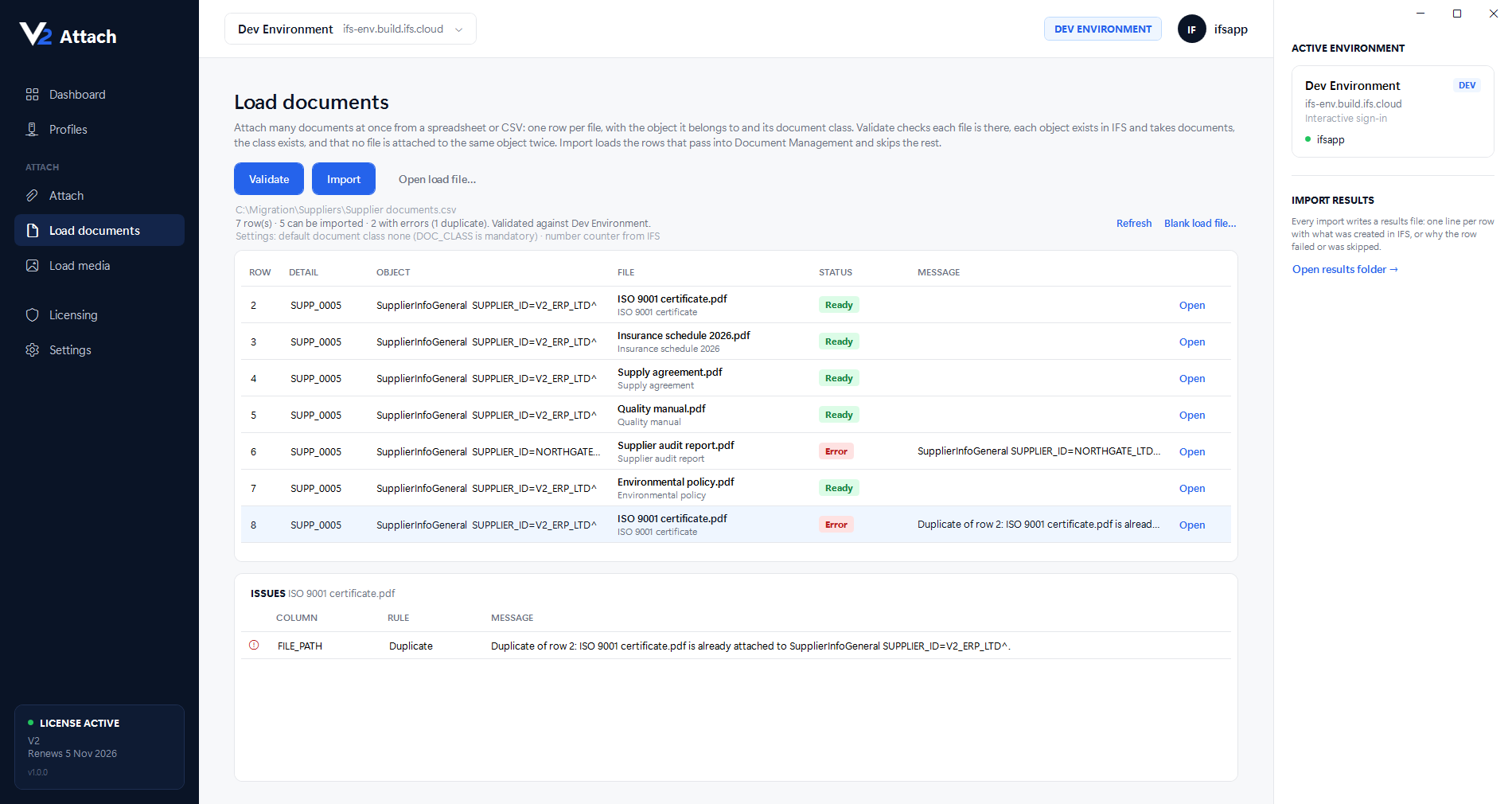
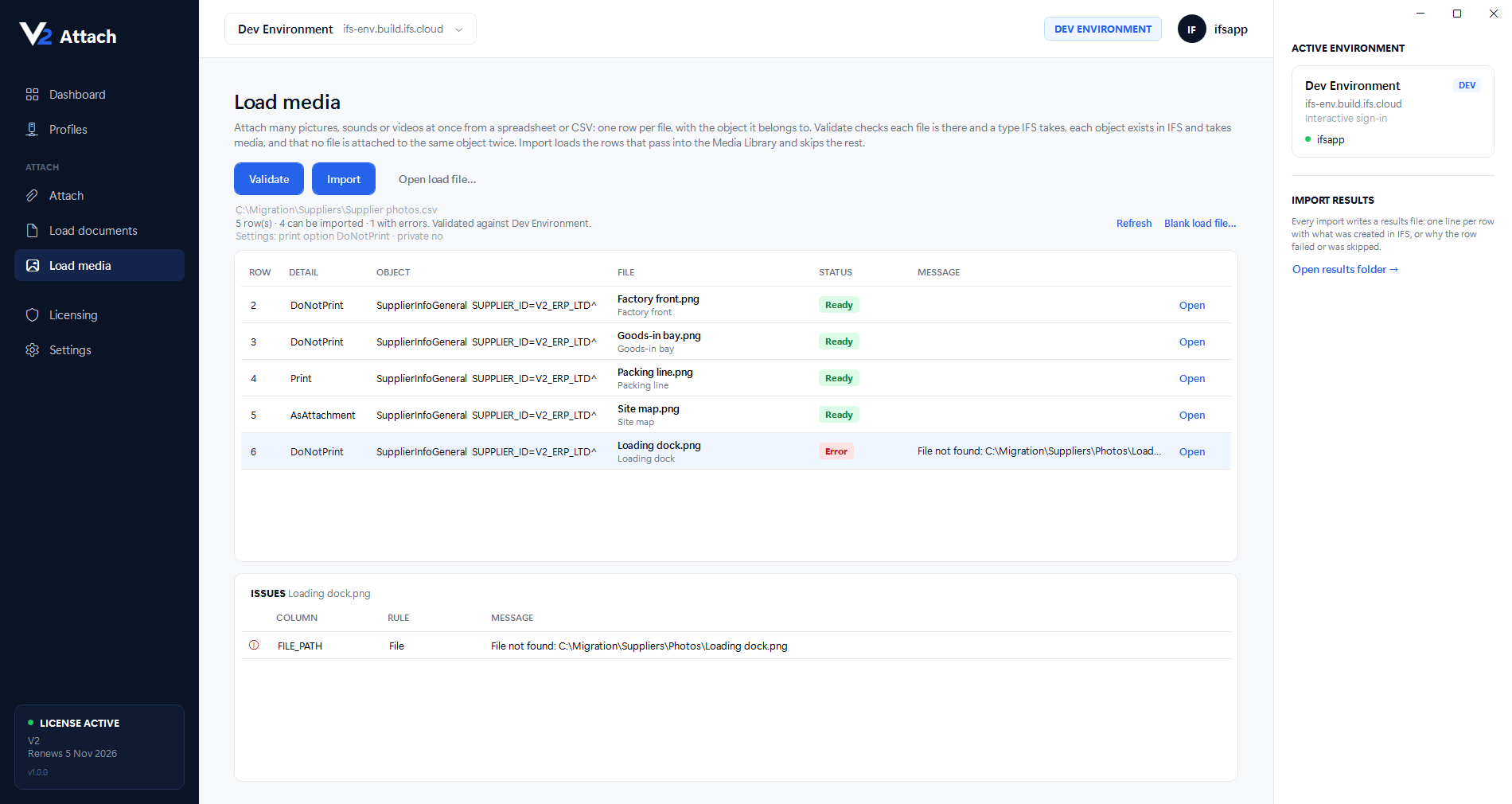
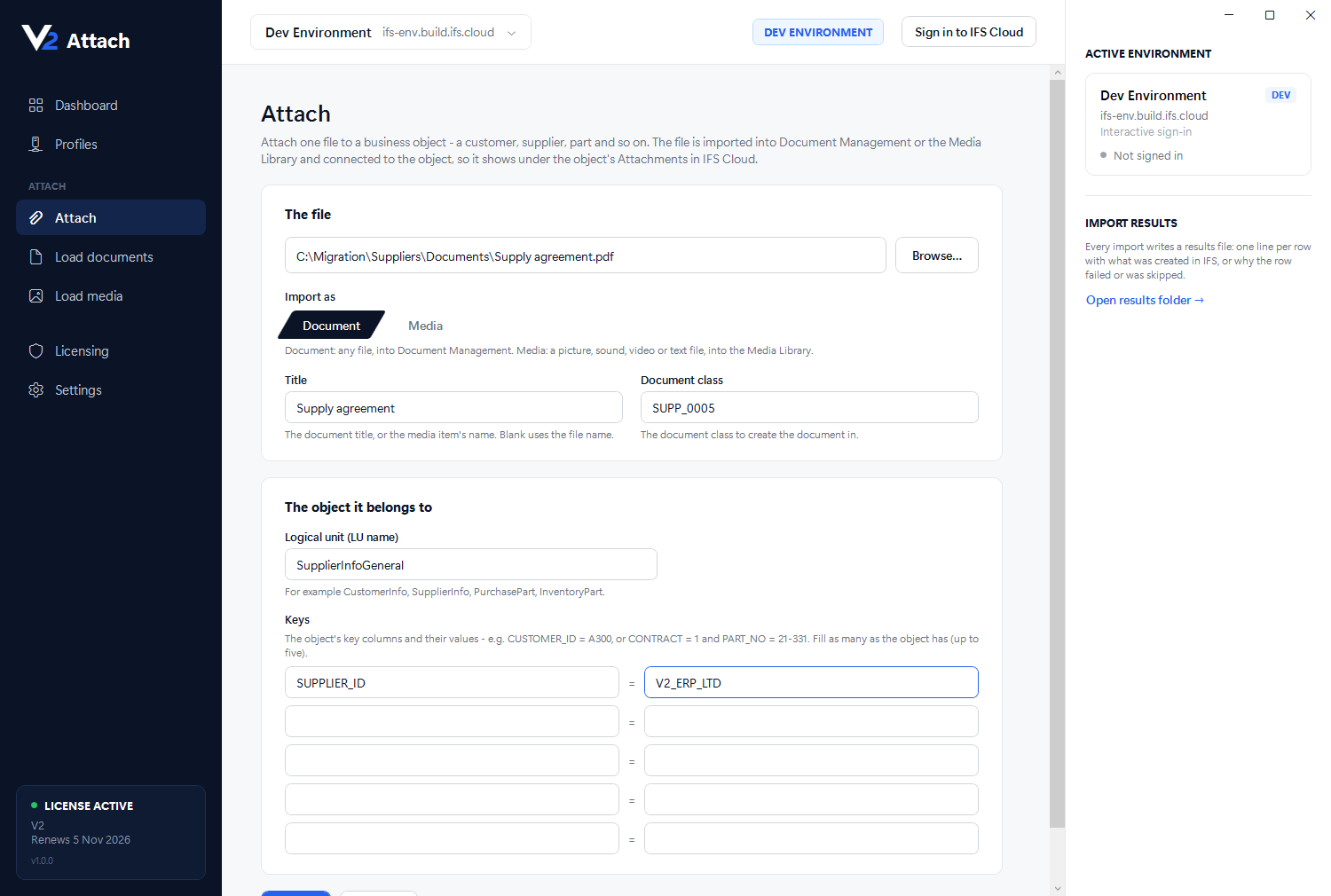
These are real screens from V2 Attach: the dashboard, a documents load file validated against IFS Cloud, a media load file, and attaching a single file.
Checked before anything is written
Validate runs six read-only checks against IFS Cloud — the logical unit, its keys, the object itself, the document class and more — so problems are found before a single file is imported.
Shows up where your users look
Every file lands under the object's Attachments in IFS Cloud, in Document Management or the Media Library, exactly as if a user had added it by hand.
Built for careful, repeatable imports
V2 Attach is a Windows desktop application for teams loading documents and media into IFS Cloud — at go-live, during a migration, or as business as usual.
A spreadsheet, not a script
One row per file in an Excel or CSV load file: the object, its keys and the file path. The app saves a blank one with notes on every column.
Documents and media
Any file type into the document class you choose, plus pictures, sound, video and text into the Media Library, each with its own print option.
Duplicates caught early
The same file attached to the same object twice in a load file is flagged as soon as the file is opened, before IFS is asked anything.
Errors in plain words
Each row shows Ready or Error, and the Issues panel names the column, the rule and the reason. Rows with errors are skipped, never guessed at.
Confirm before production
Every import asks for confirmation. On a production profile you type the profile's name before it starts.
A record of every run
Each import writes an Excel results file: one line per row with what was created in IFS, or why not, and a summary sheet with the counts.
Test first, then live
Connection profiles hold each environment's URL and sign-in, so you can prove a load in DEV or UAT before running it in production.
Secure and easy to deploy
Your own IFS sign-in or a service account, with sessions and secrets encrypted by Windows data protection. Installs from an MSI or setup EXE.
Four steps from load file to attached
Fill in a load file
Save a blank load file from the app and fill in one row per file: the object, its keys and the file path.
Validate
The app checks the files on your PC, then every object, class and file type against IFS Cloud. All read-only.
Import
Confirm, and the rows that passed are imported several at a time. Rows with errors are skipped.
Review the results
A results file lists every row with what was created in IFS, or why it wasn't.
Screenshots show a development environment; the environment and supplier names have been changed. IFS and IFS Cloud are trademarks of IFS AB and are used to describe compatibility.
See V2 Attach with your own IFS Cloud data
Contact V2 to book a demonstration and try your first load against a test environment.
Book a demo