V2 MagicRows
Copy rows between IFS Cloud environments, and to Excel and back. V2 MagicRows works with IFS Cloud's own Copy and Paste Rows: copy in CFG and paste in UAT, or paste into Excel, change the rows, and paste them back as new records. Free, with nothing new to learn.
Add to Chrome — it's freeCopy, paste, done
Copy between environments, the round trip through Excel, large sets pasted in batches, and how your data is kept private.
Uses IFS Cloud's own Paste Rows
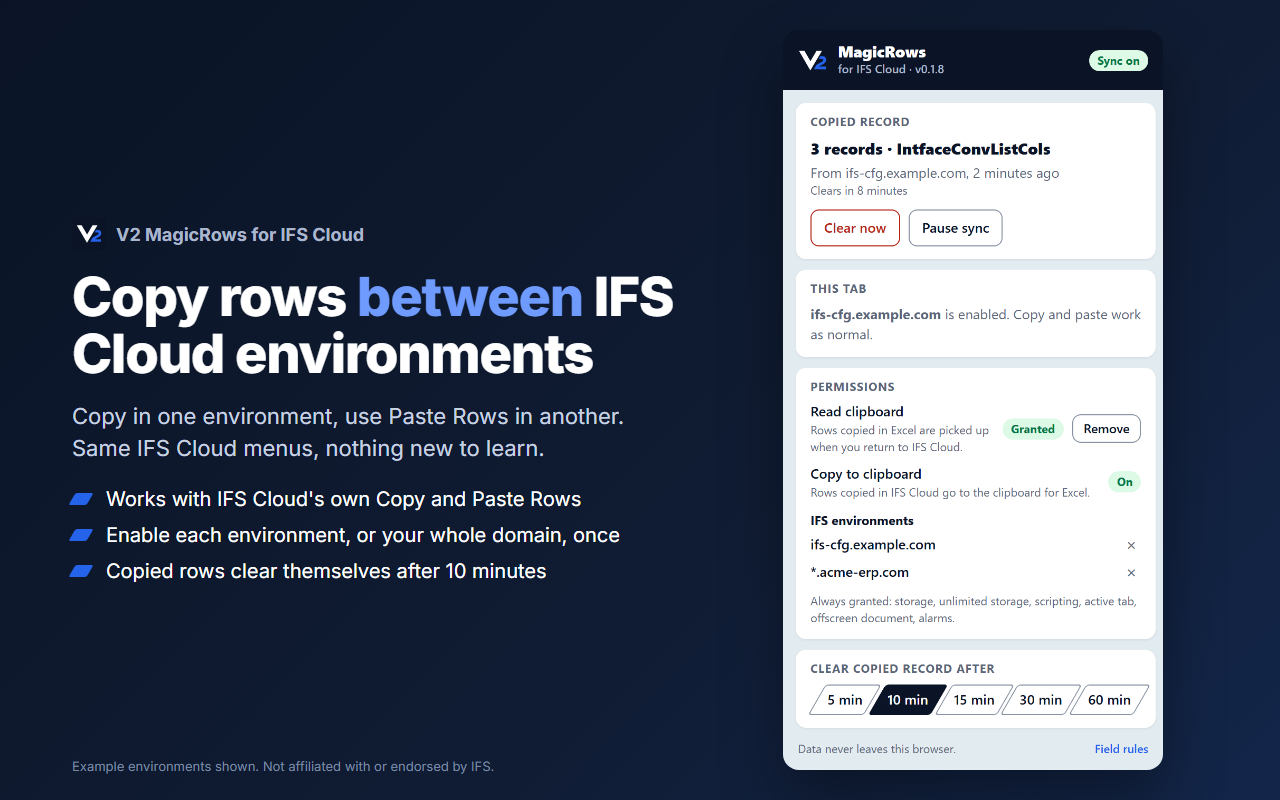
No new screens and no new menus. Copy and Paste Rows work exactly as before, just across environments and with Excel as well.
Nothing leaves your browser
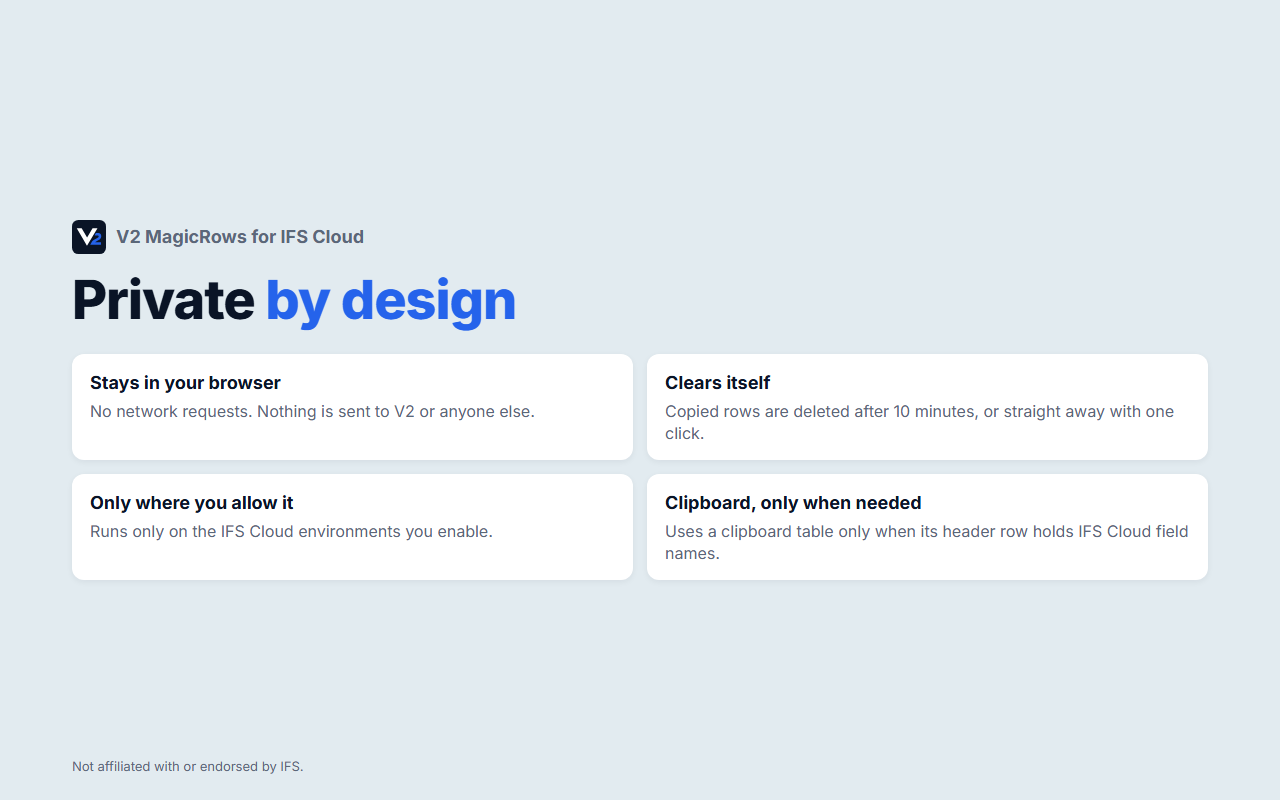
V2 MagicRows makes no network requests. Copied rows stay on your computer and clear themselves after ten minutes, or straight away when you choose.
Small tool, big time saver
For consultants and key users who move setup and reference data between IFS Cloud environments, or keep it tidy in Excel.
Between environments
Copy rows in one IFS Cloud environment and use Paste Rows in another: CFG to UAT, UAT to production and so on.
Straight into Excel
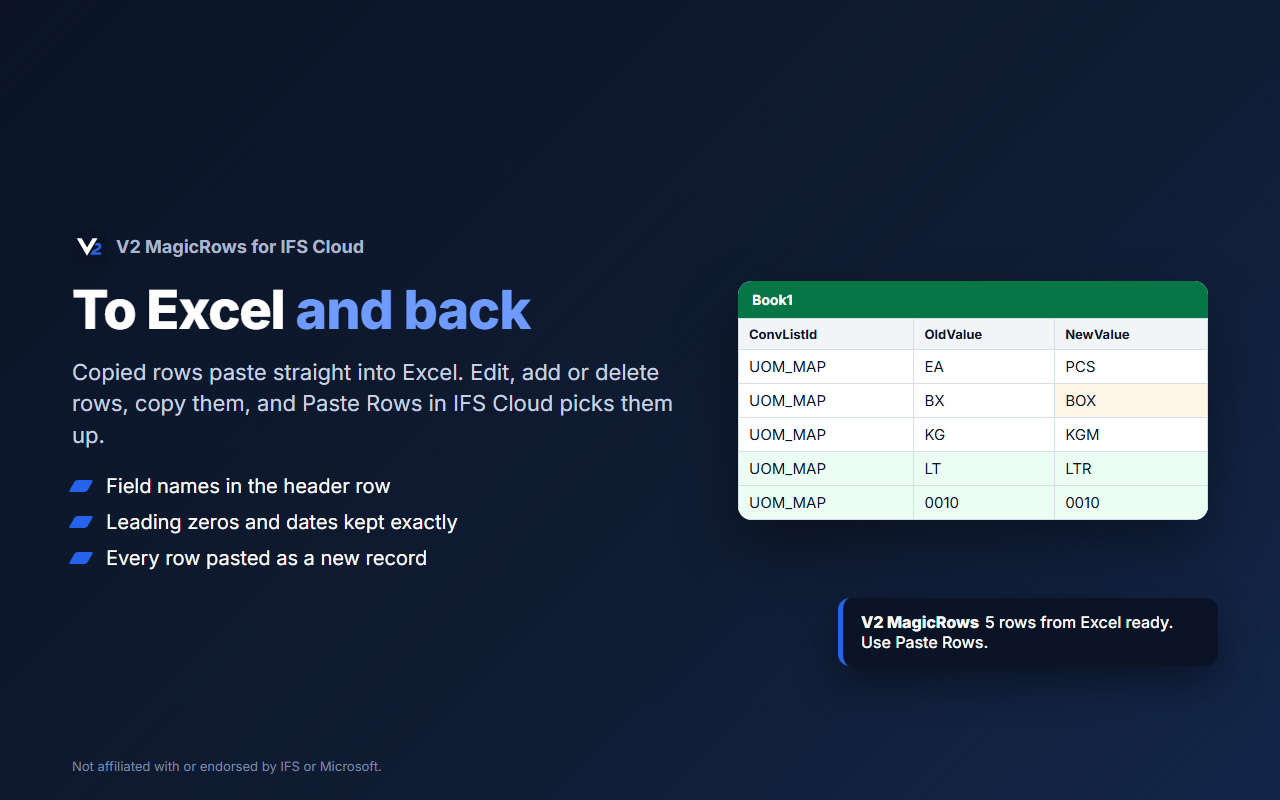
Every copy also goes on the clipboard as a table, with field names in the header row. Leading zeros and dates are kept exactly.
And back again
Change, add or delete rows in Excel and copy them. When you return to IFS Cloud, Paste Rows picks them up as new records.
Large sets in batches
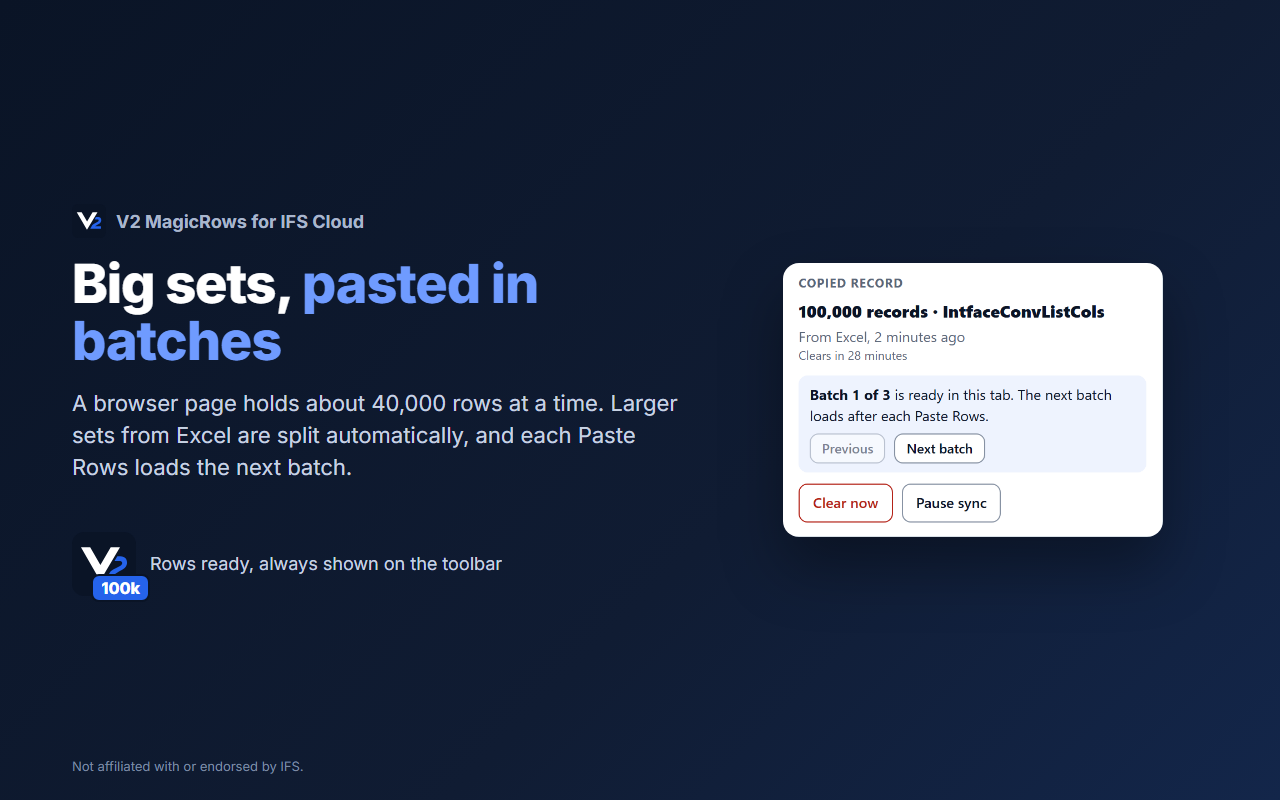
A browser page holds about 40,000 rows at a time. Larger sets from Excel are split automatically, and each Paste Rows loads the next batch.
Always know what's held
The toolbar icon shows how many rows are ready to paste, and a short message confirms every copy and pick-up.
Only where you allow it
Enable each environment, or your company's whole domain, once. On any other website the extension does nothing.
Field rules
Choose fields to leave out when pasting into another environment, and hide system columns from Excel if you prefer.
Chrome and Edge
Install from the Chrome Web Store. It works in Google Chrome and Microsoft Edge with the IFS Cloud web client.
Four steps to your first paste
Add to Chrome
Install V2 MagicRows free from the Chrome Web Store and pin the V2 icon to your toolbar.
Enable your environments
Open an IFS Cloud page, click the V2 icon and enable it. Repeat for each environment, or enable your whole domain at once.
Copy
Select rows in IFS Cloud and use Copy as normal. They're ready in your other environments and on the clipboard for Excel.
Paste Rows
In the other environment, or after editing in Excel, choose Paste Rows from the grid menu and save.
Screens show example environments. Every row is pasted as a new record, and IFS Cloud's own validation still applies. IFS and IFS Cloud are trademarks of IFS AB and are used to describe compatibility. See the Privacy Statement for how V2 MagicRows handles your data.
Try V2 MagicRows on your own IFS Cloud
Free from the Chrome Web Store. The user guide covers setup, the Excel round trip, settings and troubleshooting.
Add to Chrome Download the user guide (PDF)